How to Build an Offline Pipeline Leak Survey Form with Photos and Audit Trail
Set up a digital pipeline leak survey form that works entirely offline — with photo documentation, GPS coordinates, and a built-in audit trail for PHMSA compliance.
Pipeline leak surveys are a federal compliance requirement — and one of the most documentation-heavy tasks in the field. Under PHMSA regulations (49 CFR §192.723), gas distribution operators must conduct periodic leakage surveys, grade every leak found, and maintain records that prove when and where inspections happened.
The problem? Most of this work happens in places with no cell signal. Underground vaults, remote transmission corridors, rural distribution lines — the areas that need the most thorough documentation are the hardest places to stay connected.
If your crew is still using paper forms or relying on apps that need internet to save data, you're creating risk. Lost forms, illegible handwriting, missing timestamps, and no proof of where the survey actually happened.
Here's how to set up a digital pipeline leak survey form that works entirely offline — with photo documentation, GPS coordinates, and a built-in audit trail.
What a Pipeline Leak Survey Form Needs to Capture
Before building your form, let's cover the data points that regulators and internal auditors typically expect:
Identification fields: Operator name, survey technician name, date, route or segment ID, survey equipment type and calibration date.
Survey data: Leak location (street address or GPS coordinates), leak classification (Grade 1, Grade 2, or Grade 3), reading (PPM or % LEL), proximity to buildings or substructures, and atmospheric conditions.
Documentation: Photos of the leak location and surrounding area, photos of equipment readings, technician signature confirming the survey was completed.
Audit trail data: Timestamp of when the form was started and submitted, GPS coordinates captured automatically (not manually entered), device information, and sync status showing when the data was uploaded to the office.
That last category — the audit trail — is what separates a basic digital form from one that actually holds up during an inspection. Regulators don't just want to see that a survey was done. They want to verify *when* and *where* it happened, with evidence that can't be easily fabricated.
Why Offline Capability Isn't Optional
Pipeline leak surveys happen on a schedule, and that schedule doesn't pause because your crew is in a dead zone. Federal rules require surveys in business districts at intervals not exceeding 15 months. Outside business districts, the interval extends to 5 years (or 3 years for non-cathodically protected lines). Miss a window, and you're out of compliance.
If your form app requires internet to function, your technicians are stuck choosing between:
- Completing the survey and writing notes on paper to enter later (defeating the purpose of going digital)
- Driving to an area with signal to submit each form (wasting hours per shift)
- Skipping documentation steps to save time (creating compliance gaps)
None of those are acceptable. The form needs to work the same whether the phone has full bars or no signal at all. Data gets saved locally, photos get stored on the device, and everything syncs automatically once the technician reconnects.
Building the Form: A Step-by-Step Walkthrough
Here's how to set up an offline-capable pipeline leak survey form using FieldForm. The same principles apply if you're evaluating any offline form builder — this is the structure you need regardless of the tool.
Step 1: Create the Survey Header
Start with the fields that identify the survey event:
- Surveyor Name (text field)
- Date of Survey (date field — auto-populated)
- Route/Segment ID (text field)
- Equipment Type (select: FID, CGI, OGI Camera, Laser, Other)
- Calibration Date (date field)
- Weather Conditions (select: Clear, Rain, Snow, Wind >15mph)
These fields establish context for every leak entry that follows.
Step 2: Add Leak Detection Fields
For each leak identified during the survey:
- Leak Location Description (text field — cross street or landmark reference)
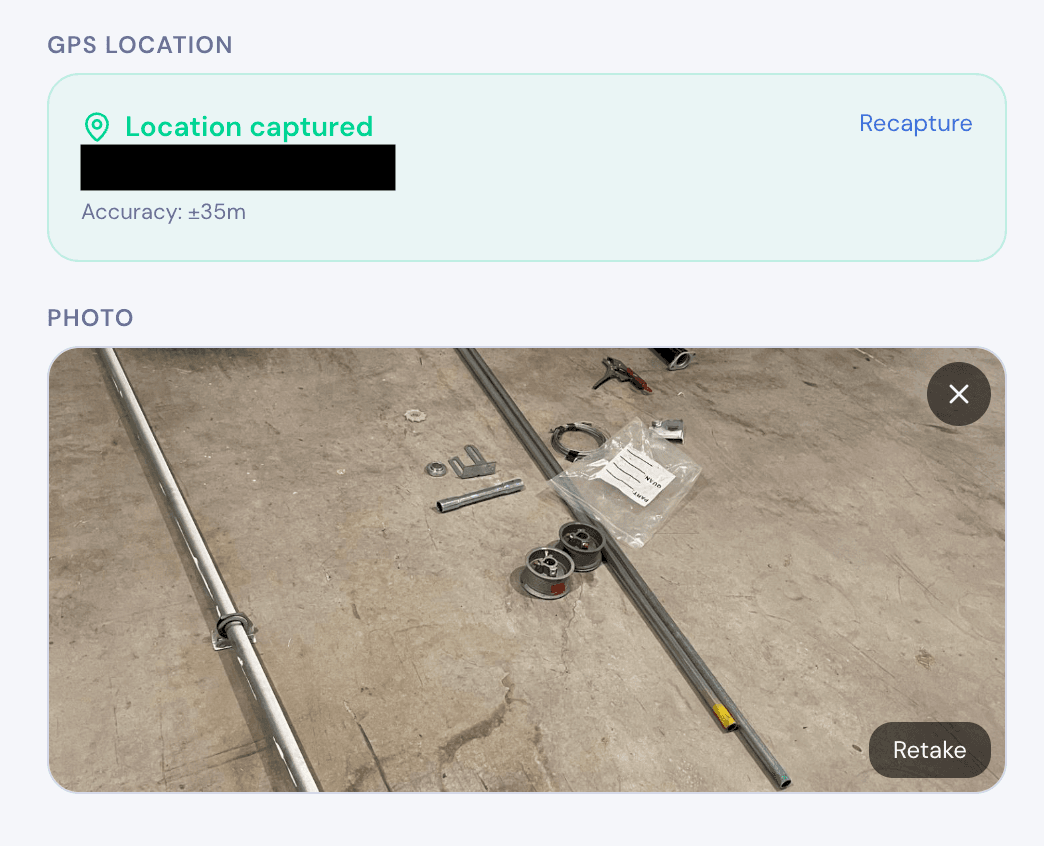
- GPS Coordinates (GPS field — auto-captured from the device, not manually typed)
- Leak Classification (select: Grade 1 – Immediate Hazard, Grade 2 – Scheduled Repair, Grade 3 – Monitor)
- Reading (number field — PPM or % LEL)
- Proximity to Buildings (select: Adjacent, Within 50ft, Within 100ft, >100ft)
- Infrastructure Type (select: Main, Service Line, Meter Set, Regulator, Valve)
- Photo of Leak Location (photo field — taken directly in the form)
- Photo of Instrument Reading (photo field)
The GPS field is critical. When it auto-captures coordinates at the moment the form is filled out, it creates a location record that's tied to the actual time of the inspection. That's your audit trail anchor.
Step 3: Add Completion and Sign-Off Fields
- Total Mains Surveyed (ft) (number field)
- Total Services Surveyed (number field)
- Total Leaks Found (number field)
- Additional Notes (textarea)
- Surveyor Signature (signature field)
- Photo of Survey Area (photo field — wide shot of the area covered)
The signature field gives you a digital record that the technician personally attested to the survey results. Combined with the auto-captured timestamp and GPS, this creates a three-point audit trail: who, when, and where.
Step 4: Test It Offline
Before deploying to your crew, test the form with airplane mode on. Open the form, fill out every field, capture photos, grab GPS, sign it, and submit. The submission should save locally. Turn your connection back on and verify the data syncs with the timestamp intact.
This is the step most teams skip — and the one that matters most. If the offline experience isn't identical to the online experience, your crew will run into problems on day one.
The Audit Trail: What It Is and Why Auditors Care
An audit trail for pipeline leak surveys isn't a separate document you create after the fact. It's the metadata automatically captured during the survey:
Timestamps — When the form was opened, when each field was filled, when it was submitted. These prove the survey happened on the date claimed.
GPS coordinates — Auto-captured location data shows the technician was physically at the survey site. This is fundamentally different from a technician typing in an address back at the office.
Photos with EXIF data — Photos taken within the form carry metadata including the time taken and (if the device supports it) location. This corroborates the GPS and timestamp data.
Sync records — The time gap between submission (offline) and sync (online) is logged. This demonstrates the survey was completed in the field, not fabricated after returning to the office.
Together, these create a chain of evidence that auditors and regulators can verify. When PHMSA or a state PUC reviews your leak survey records, they're looking for exactly this kind of documentation integrity.
Common Mistakes to Avoid
Don't rely on manual GPS entry. If your form has a text field where the technician types in coordinates, that's not an audit trail — it's self-reported data. Use auto-capture GPS fields that pull from the device's location services.
Don't use a form app that requires creating submissions online first. Some tools let you "cache" a form for offline use but require you to start the submission online. That breaks the workflow for crews who are offline from the start of their shift.
Don't skip photo compression. Pipeline crews might fill 20-30 forms per shift, each with multiple photos. If your app doesn't compress images automatically, you'll burn through device storage in a week. Look for apps that compress photos during capture without losing enough quality to be useful for documentation.
Don't forget to test sync conflict resolution. What happens if two technicians survey overlapping areas and both sync at the same time? Your tool needs to handle this without losing data.
Getting Started
If your crew is currently using paper forms or a tool that doesn't work reliably offline, making the switch doesn't have to be complicated. The form structure above can be built in under 30 minutes with an offline-capable form builder.
FieldForm is designed specifically for this kind of field work — offline-first, with built-in photo capture, GPS auto-tagging, signature collection, and PDF export. You can build the pipeline leak survey form described in this guide on the free tier, deploy it to your crew's phones as a PWA (no app store needed), and start collecting data with a proper audit trail today.
Key Takeaways
Pipeline leak survey compliance depends on documentation quality, not just survey frequency. An offline form with auto-captured GPS, timestamped photos, and digital signatures creates the audit trail that regulators expect. The form should work identically whether the technician has full connectivity or no signal at all — because in this line of work, no signal is the norm, not the exception.
Ready to try FieldForm?
Free offline form builder for field teams. No app install needed.
Get started freeMore from the blog
Form Groups: Fill Multiple Linked Forms in One Site Visit
Learn how FieldForm's new Form Groups feature lets you link a main form to a set of check forms, auto-populate shared fields, and export everything as a single PDF bundle.
GuideHow to Collect Field Data Without Internet in 2026
Learn how offline field data collection apps work, why they matter for remote teams, and how to set up a reliable workflow that syncs when you reconnect.